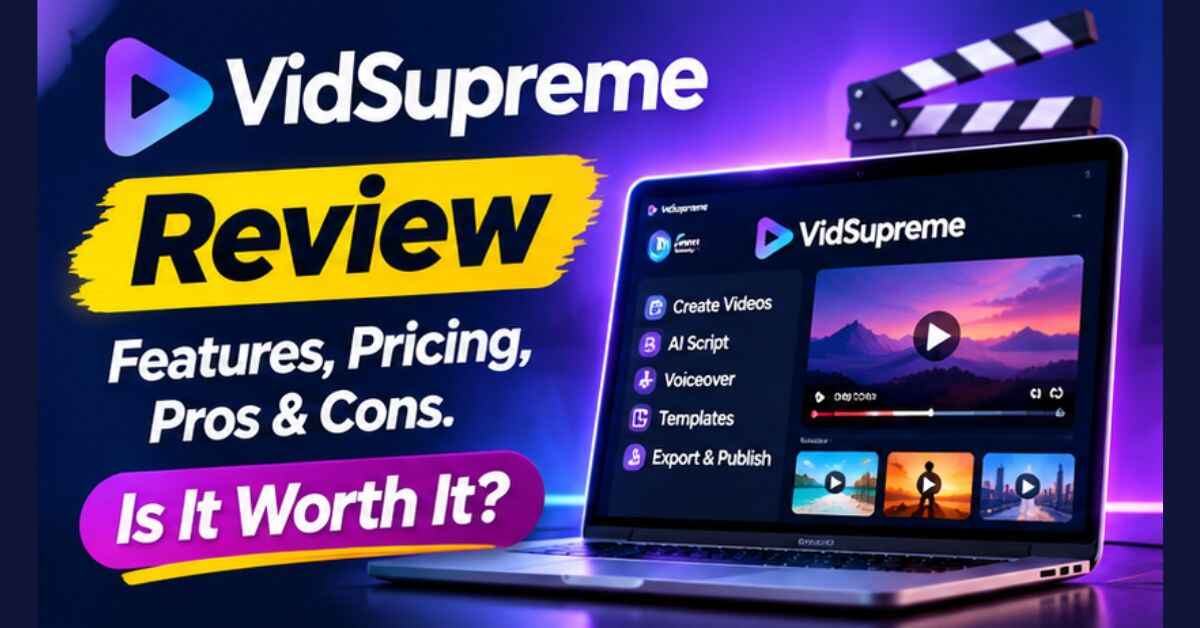
VidSupreme Review 2026: Features, Pricing, Pros & Cons. Is It Worth It?
You’ve got something to say, and a video is the best way to say it. Maybe it’s a product walkthrough, a history lesson, a local business pitch, or a short course intro. But then you open a video editor, stare at the timeline, and realize it’s going to take your entire weekend. That frustration is exactly why I wanted to write this VidSupreme review.
VidSupreme is a Windows desktop app that turns a topic, or a script you’ve already written, into a finished explainer video. It writes the scenes, animates them, adds a voice and captions, and renders an MP4 on your own computer. I went through everything on the official page, including the parts most promoters skip, like the setup quirks and the extra costs. Below, you’ll find what it does, how it works, who it suits, and where you should be careful before you buy.
VidSupreme Review: Quick Overview
| Product | VidSupreme |
| Type | Desktop app for Windows (10 and 11, 64-bit) |
| What it does | Turns a topic or your own script into a finished explainer video |
| Scene templates | 61 animated scene types |
| Voice and captions | AI voices, with captions timed word by word |
| Export | Horizontal and vertical MP4 (square with Pro) |
| Rendering | On your own computer |
| AI costs | You bring your own AI key, usually about 16 to 33 cents per minute of video |
| Free option | Free AI models are available, plus a free trial |
| Status | Early access |
| Best for | Marketers, course creators, local business owners, freelancers, and anyone making explainer videos |
What Is VidSupreme?
VidSupreme is an AI video studio built around one specific job: explainer videos. Not talking-head clips, not cinematic footage, just clear, animated videos that explain something. Think product explainers, how-to guides, history videos, course lessons, and promos for local businesses.
You give it a topic and it writes the script. Or you paste in your own script and it keeps your words exactly as you wrote them. From there, it picks a scene type for each part, animates everything, adds a voice, times the captions to each word, and renders the final MP4.
What makes it different from a typical online video tool is where the work happens. The app runs on your PC. Your projects, scripts, and media stay on your computer, and AI requests go from your machine to the provider you choose, using your own key. If you care about privacy or you’re tired of monthly credit limits, that’s a real point in its favor.
How Does VidSupreme Work?
The official page describes four steps. I’ve grouped them into three so it’s easier to picture.
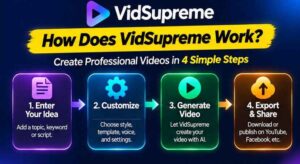
Step 1: Getting Started
You download the installer for Windows and sign in with Google. The sign-in is only used to set up your account and licence. According to the page, Google shares your email, name, and account ID, and the app asks for no other Google data, so no Gmail, Drive, or contacts.
A quick heads-up that I appreciate the page being open about. Windows may show an “unknown publisher” warning when you run the installer, because the app isn’t code-signed yet. You choose More info, then Run anyway. That’s worth knowing before you click, and it’s also a reason to pay attention to where you download from. Use the official link on the product page only.
Step 2: Setting Up the Product
Next, you connect your own AI key through OpenRouter. This is how the app pays for the script writing, pictures, and voice. The page says costs are usually around 16 to 33 cents per minute of finished video, billed by the AI provider and not by VidSupreme.
There’s also a free route. Free models can write and voice the video, though OpenRouter asks for a $0.50 balance for the word timing. The page is clear that this is a minimum balance and not a charge. So you can test the app without spending much.
Step 3: Using the Main Features
Now you make a video. You type a topic or paste a script. The app picks a scene type for each section, like kinetic text, charts, timelines, maps, lists, or diagrams. You review the scenes and change any word, color, or scene you like.
Then you generate or import pictures, choose a voice, and let the app time every word so the captions and animations follow the narration. Before it renders, a built-in check looks for text that’s cut off or overlapping. After that, it renders the MP4 on your computer.
👉 Curious what a finished VidSupreme video looks like? Take a look at the official page and see how the scenes and captions come together.
VidSupreme Features and Benefits
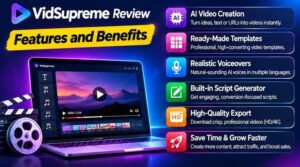
Feature 1: 61 Animated Scene Types
This is the heart of the app. Instead of one boring slideshow style, you get 61 templates, including kinetic type, bar, line, and donut charts, timelines, comparisons, maps, flows, cycles, Venn diagrams, pyramids, mind maps, chat and search formats, and recap and end cards.
The benefit is variety. A video that keeps showing the same layout loses people fast. With this many scene types, a script about a product launch can use a timeline, a comparison, and a chart without you designing anything from scratch.
Feature 2: Cuts Inside Long Scenes
Here’s a detail that shows someone thought about viewer attention. While one sentence is being spoken, the picture can cut to other templates on chosen words. The idea is that viewers see something new every few seconds instead of staring at one static scene while the narrator talks.
Anyone who has watched a flat explainer knows the difference. Movement keeps people watching, and watch time is what platforms like YouTube pay attention to.
Feature 3: Voice, Word-Timed Captions, and a Picture Check
The voice comes from AI models through your own OpenRouter key, including a free option. Captions are timed word by word, which matters because most people watch short videos on mute. Scripts and voices work in many languages too.
Then there’s the picture check. Before rendering, the app looks at real frames and flags text that’s cut off, covered by captions, or too small. It’s the kind of boring feature that saves you from re-rendering a ten-minute video because one line ran off the screen.
Who Is VidSupreme Best For?
VidSupreme makes the most sense for you if you:
- Run a small or local business and want simple explainer videos for your services
- Sell courses or digital products and need clear lesson or promo videos
- Freelance for clients and want a faster way to deliver explainer videos
- Create faceless YouTube or social content on topics like history, how-tos, or product reviews
- Already have scripts and want to turn them into videos without learning an editor
Here’s a quick example. Imagine a plumber who wants a 60-second video explaining why water heaters fail. He types the topic, reviews the scenes, picks a voice, and renders a vertical MP4 for social media. No camera, no editing software, no hiring a freelancer for a one-off video.
It’s probably not the right pick if you use a Mac, since it’s Windows only for now. It’s also not ideal if you want live-action footage or on-camera presenters, or if you have a very old computer, since the rendering happens on your PC and long videos take longer on slower machines. Also read: CinemaSites AI Review 2026: Features, Pricing, Pros & Cons (Worth It?)
VidSupreme Pros and Cons
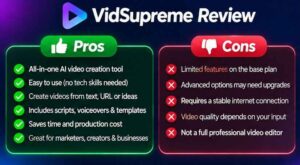
Pros
- Turns a topic or your own script into a finished MP4
- 61 animated scene types for variety
- Word-timed captions and AI voices
- Picture check catches cut-off or overlapping text
- Runs on your PC, with projects and media staying local
- Your own AI key means no markup on AI costs
- A free AI route and a free trial to test it
- Horizontal and vertical exports, with square on Pro
- Scripts and voices in many languages
Cons
- Windows only for now
- You need your own OpenRouter key, and AI costs add up with heavy use
- The installer isn’t code-signed yet, so Windows shows a warning
- It’s in early access, so expect updates and rough edges
- Rendering speed depends on your computer
- Not built for live-action or on-camera videos
👉 Want to see whether the style fits your niche? Check the features and walk through the steps for yourself. See VidSupreme here.
VidSupreme Pricing and OTOs
The official page I reviewed doesn’t list a purchase price, and it doesn’t spell out upgrade (OTO) names or prices. It does mention a free trial and a purchased licence, and it refers to a Pro tier, since square video is a Pro feature. So I won’t print a number that might be wrong.
The current price, plus any launch discount, is shown on the checkout page when you click through. Check it there before you decide.
Two cost points are worth planning for, because they sit outside the licence price:
- AI costs. You pay your AI provider directly. The page estimates about 16 to 33 cents per minute of video. A ten-minute video could therefore cost a few dollars in AI use, depending on the models you choose.
- Free route. If you stick to the free models, you only need a small OpenRouter balance for word timing.
My advice on upgrades is the same as always. Start with the main product, make a couple of real videos, and only add an extra if you hit a limit you actually care about.
VidSupreme Bonuses
Bonuses vary by promoter and by launch period, and I can’t see a named list on the official page. Check the checkout page and any bonus page linked from your purchase to see what’s currently included.
Treat bonuses as a pleasant extra and not as the reason to buy. Decide on the app first.
My VidSupreme Evaluation
Here’s how I’d rate it based on what the page describes.
- Ease of use: 8/10. Four clear steps, and you can edit anything along the way. The Google sign-in, installer warning, and AI key setup add a little friction at the start.
- Video variety: 9/10. 61 scene types and mid-scene cuts are a real strength for explainers.
- Value for money: 8/10. Local rendering means no per-video credits from VidSupreme, though your AI costs are separate.
- Privacy: 9/10. Projects stay on your computer, and the page explains exactly what the Google sign-in is used for.
- Maturity: 6/10. It’s in early access and the installer isn’t code-signed yet, so expect it to keep improving.
What I like most is the honesty. The page tells you straight out that it’s Windows only, that you pay for AI separately, that Windows will warn you about the installer, and that it’s still early. Product pages that admit their limits are usually the ones worth listening to.
VidSupreme vs. Alternatives
You’ve got a few other ways to make explainer videos, and each comes with trade-offs.
Traditional video editors. You get total control, but the learning curve is steep and a single video can eat a whole day. Great if you enjoy editing, painful if you don’t.
Online AI video tools. They’re convenient and run in your browser, but many charge monthly fees or credits and limit exports. Your projects also live on someone else’s servers.
Slideshow and presentation tools. They’re simple, but videos often look flat and lack animation, word-timed captions, and voiceovers.
Hiring a freelancer. You can get polished results, but each video costs money and takes time, which adds up if you publish often.
VidSupreme. It sits between the editor and the online tool. You get fast, animated explainers made on your own PC, with the trade-off that it’s Windows only, still in early access, and you manage your own AI key.
If you already have a smooth video workflow you like, you may not need it. If making videos is what keeps you from posting them, it’s worth a look.
Is VidSupreme Legit?
From what I can see, yes. The product page has a real description, a downloadable installer, a privacy policy, terms of service, and a support contact. It explains what data the Google sign-in collects and what it doesn’t, and it states the limits openly, including early access, Windows only, and the unsigned installer.
That said, a few sensible habits will protect you:
- Download only from the official page. Because the installer isn’t code-signed, the Windows warning is expected. But that’s all the more reason to avoid unofficial download links.
- Start with the free route. Use the free trial and the free AI models first, so you can judge the output before you spend much.
- Keep expectations realistic. A good tool makes videos faster. It doesn’t guarantee views, clients, or income.
VidSupreme Refund Policy
The official page doesn’t state a refund period, so I can’t quote one. Refund terms for purchases made through the checkout are shown there, so read them before you pay.
Whatever the window is, use the free trial first and then test the paid version quickly. Install it the day you buy, make a real video, and check the render quality on your computer. If it isn’t a fit, ask for your money back while you’re still inside the refund period.
Frequently Asked Questions
Does VidSupreme work on Mac?
Not yet. It’s currently Windows only (Windows 10 and 11, 64-bit).
Do I need to pay for AI separately?
Yes. You bring your own AI key through OpenRouter. The page estimates about 16 to 33 cents per minute of video, and a free route exists with a $0.50 minimum balance for word timing.
Can I use my own script?
Yes. Paste it in and the app keeps your words exactly as you wrote them.
What video sizes can I export?
Horizontal and vertical MP4, with square available on Pro.
Does it work in other languages?
The page says scripts and voices are available in many languages.
Where are my projects stored?
On your own computer. Rendering also happens locally.
Why does Windows warn me about the installer?
The app isn’t code-signed yet, so Windows flags it as an unknown publisher. The page tells you to choose More info, then Run anyway. Only do this with the official download.
Is there a free trial?
The page mentions a free trial when you sign in. Check the app for current details.
Final Verdict: Is VidSupreme Worth Buying?
If you make explainer videos, or you’ve been avoiding them because editing feels like a chore, VidSupreme is worth a close look. The scene variety is strong, the captions and voices are handled for you, the picture check saves re-renders, and running locally means your projects stay yours.
It isn’t perfect. It’s Windows only, it’s still in early access, and you’ll need an AI key and a little patience with the setup. But I’d rather recommend a tool that’s upfront about those things than one that hides them.
My suggestion is to start small. Try the free route, make one short video from a topic you know well, and see how it feels. If the result looks like something you’d proudly post, you’ve found a faster way to make videos. If not, you’ve lost very little.
👉 Ready to turn a topic into a finished video? Get VidSupreme here and see what your first explainer looks like.
A quick note: this post contains my affiliate link. If you buy through it, I may earn a small commission at no extra cost to you. I only recommend things I think are worth your time, and I’ve tried to share both the good and the not-so-good so you can make your own call.