ElevenLabs Text-to-Speech Tutorial: How to Create Natural AI Voiceovers in Minutes
This ElevenLabs text-to-speech tutorial is for anyone who has stared at a blank text box, wondered which voice to pick, and worried about wasting credits on a bad first attempt. I’ve been there. The tool looks simple, and it is, but a few small choices make the difference between audio that sounds like a real person and audio that sounds like a slightly confused robot. Let’s walk through it together, one step at a time, in plain English.
Why Most People’s First Attempt Sounds Bad
Here’s how it usually goes.
You sign up, full of excitement. You paste in your script, pick the first voice that looks interesting, and hit generate. You listen. It’s… okay. Not terrible. But something’s off. The emphasis lands in odd places. A number gets read strangely. One sentence sounds cheerful when it should sound serious.
So you tweak something and generate again. Then again. Each attempt uses credits, and your monthly allowance is shrinking. Twenty minutes later you’re frustrated, and you start to wonder whether the tool is overrated or whether you’re doing something wrong.
Nine times out of ten, it’s the second one, and it’s not your fault. Nobody tells you which choices matter most. You end up fiddling with sliders that barely change anything while ignoring the two decisions that change almost everything.
That’s exactly what we’re going to fix.
What Messy Audio Really Costs You
Before the steps, let me explain why this matters beyond “sounding nice.”
If you make videos, flat or glitchy narration makes viewers leave early, and that hurts how far your content travels. If you sell a course, poor audio makes students trust your material less, even if your teaching is excellent. If you publish audio versions of articles, a robotic voice quietly tells readers that you didn’t care enough to polish it.
And then there’s the plain money-and-time side. Wasted retakes burn credits. Re-recording burns hours. A bad workflow burns patience.
Good audio is rarely about luck. It’s about a handful of habits, which you can learn in one sitting. Also read: ElevenLabs Review 2026: The AI Voice Tool That Finally Made Voiceovers Feel Easy
So, What Is ElevenLabs?
ElevenLabs is an AI voice platform. You type or paste your text, pick a voice, and it reads your words back in a voice that sounds remarkably human.
The reason people notice it is the delivery. Questions rise at the end. Pauses land where a real person would take a breath. Lively lines sound lively, and calm ones sound calm.
Besides text to speech, it offers a large voice library, voice cloning, dubbing across many languages, transcription, sound effects, voice agents, and an API for developers. But text to speech is the front door, and it’s where nearly everyone starts. So that’s where we’ll spend our time.
ElevenLabs Text-to-Speech Tutorial: The Step-by-Step Walkthrough
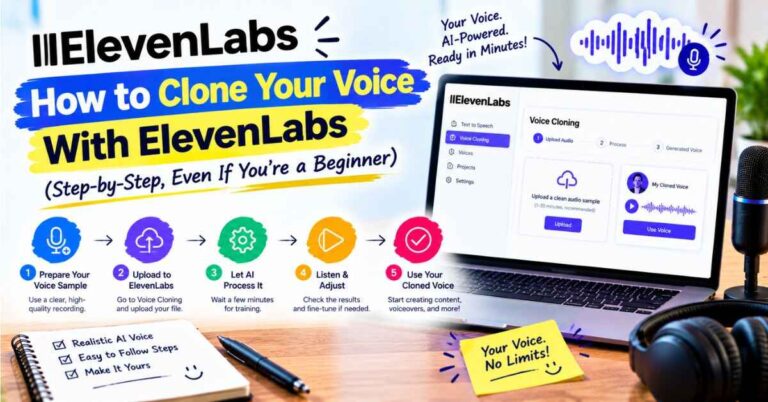
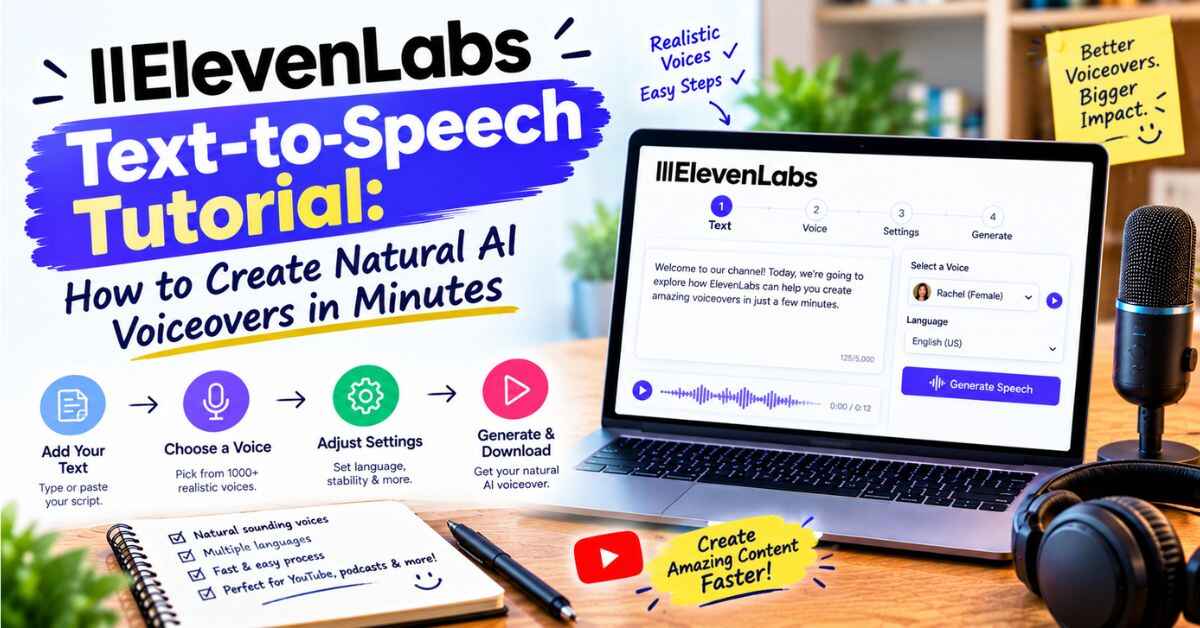
Here’s the core process. The official guide breaks it into four simple moves: enter your text, choose a voice, adjust the settings if you want to, and generate. I’ll add the little details that make each step work better.
Step 1: Prepare your text first
Don’t paste your first draft straight in. Spend five minutes cleaning it up, and you’ll save credits and frustration.
Read your script out loud. If you stumble, the AI probably will too. Rewrite long, tangled sentences into shorter ones. Use contractions the way you’d talk. Add commas where you’d naturally pause.
One piece of advice from ElevenLabs itself is worth following closely. They strongly recommend avoiding digits and symbols, and spelling numbers out instead, especially with multilingual models. So write “twenty twenty-six” or “fifty percent” the way you’d say it, rather than relying on “2026” or “50%.” Also, emojis and certain symbols are particularly hard for the AI to interpret correctly, so leave them out of anything you want read aloud.
Step 2: Choose your voice (this matters most)
This is the single most important decision. The official guide lists the order of importance as voice first, then model, then settings.
Browse the voice library, and don’t just pick the first one that sounds pleasant. Think about your content. A calm explainer wants something steady. A story wants range. A kids’ project wants something playful. A tutorial wants clarity.
Here’s a trick I like. Paste the same paragraph into three different voices and listen to all three back to back. Pay attention to the third sentence, not the first, because almost every voice sounds good for one line. You’re looking for the voice that still sounds human a few sentences in.
Step 3: Pick the right model
The model is the engine behind the voice, and it’s the second biggest factor in how your audio turns out. ElevenLabs offers two families of models: standard high-quality ones, and Flash models built for very low latency.
For videos, courses, and audiobooks, where quality matters more than speed, you’ll usually want the standard, high-quality models. Flash is mostly for real-time uses like live conversations.
One thing to remember if you work in more than one language: if your content will be in another language, or might be multilingual, you must use one of the multilingual models.
The official advice is to test a few models with your chosen voice, since every model has strengths and weaknesses and works better with some voices than others. A two-minute test now beats a bad surprise later.
Step 4: Set the sliders (but don’t overthink them)
This is where many beginners lose time, so here’s the simple version.
Stability. This controls how steady or varied the voice sounds. For a livelier, more dramatic performance, set stability lower and generate a few times until you find a take you like. For a serious performance, set it higher, though at very high values it can sound close to monotone. Think of it as a dial between “expressive and unpredictable” and “calm and consistent.”
Similarity. This controls how closely the AI sticks to the original voice. For ready-made library voices, you usually don’t need to push it far.
Style exaggeration. This tries to amplify the original speaker’s style. The advice here is surprisingly clear: it can make the model slightly less stable, and they generally recommend keeping it at zero.
Speaker boost. This nudges similarity to the original speaker, but the difference is usually subtle. Don’t stress over it.
If you want a starting point, here’s the official suggestion: the most common setup is stability around 50, similarity around 75, and style at 0, with minimal changes after that. Start there, listen, and only adjust if something sounds off. Also, extreme values can hurt the quality of the generated speech, so small nudges beat big swings.
Step 5: Generate, listen, and refine
Now press generate. Listen with headphones, because small oddities, like a strange pause or a stressed word, are easier to catch that way.
If one sentence sounds wrong, don’t regenerate the whole script. Fix that one line. It saves credits and keeps the parts you already like. If the tone feels off across the board, go back and adjust the voice, the model, or stability, in that order of importance.
Step 6: Fix tricky words
Names, acronyms, and technical terms sometimes trip up AI voices. The fix is usually small. Try spelling the word the way it sounds, adding a comma for a pause, or rewording the sentence a bit. Keep a little list of fixes that worked so you can reuse them next time. After a few projects, you’ll rarely need it.
Step 7: Download and use your audio
When it sounds right, download the file and drop it into your video editor, podcast software, or course platform. From there, treat it like any other narration. Add soft background music, keep your levels balanced, and leave small pauses between big ideas.
That’s the entire workflow. Seven steps, and once you’ve done it a couple of times, it takes minutes.
👉 Want to follow along as you read? Open a free ElevenLabs account here and keep it open in another tab.
Going Further: Adding Emotion With Audio Tags
If you want to move from “good” to “wow,” there’s one more tool worth knowing about.
ElevenLabs has a newer model called Eleven v3 that supports what they call audio tags. These let you direct a voice to laugh, whisper, sound sarcastic, or express curiosity, among other styles. You write short cues in square brackets, like [whispers] or [excited], right in your text.
A few tips from the official prompting guide:
- The voice still matters most. If the voice is shouting and you use a whisper tag, it likely won’t work well. Match your tags to the voice’s natural character.
- Punctuation shapes delivery. Ellipses add pauses and weight, capitalization adds emphasis, and standard punctuation gives natural rhythm.
- Longer text works better. Very short prompts are more likely to cause inconsistent output, and the guide encourages prompts longer than about 250 characters.
- Stability behaves differently. In v3, stability is the most important setting, and for maximum expressiveness with audio tags you should use the more creative or natural options.
- Some sliders don’t apply. Similarity, speaker boost, and the speed setting aren’t available for the v3 model.
- It can do conversations. v3 can handle multi-voice prompts, so you can assign different voices to different speakers for a realistic back-and-forth.
One honest note: that guidance was labeled as an early version when I read it. Features and wording change quickly, so check the current documentation before you build a big project around any one model.
Real-Life Examples: What You Can Do With This
Let me make this concrete with a few situations you might recognize.
The YouTuber. He writes a script for a ten-minute explainer. He tests three voices on the intro, picks the steadiest one, uses the standard settings, and generates in sections. When he spots a wrong fact during editing, he fixes the text, regenerates one line, and swaps it in. What used to eat an afternoon now takes about twenty minutes.
The blogger. She turns her best travel articles into audio. She rewrites a few awkward sentences, spells out the numbers, and picks a warm voice. Readers who never had time to sit down with a long post now listen on their commute. Time on page goes up, and she didn’t write a single new article.
The course creator. He records lessons for a software course. When the interface changes, he edits the script and regenerates the affected lines instead of re-recording whole modules. His course stays current with a fraction of the effort.
The storyteller. She writes short audio dramas. She switches to a more expressive model, uses audio tags to add whispers and pauses, and assigns different voices to different characters. The result feels like a small production, built from her kitchen table.
The small business owner. She needs a polished phone greeting and a few product videos. She tests a few voices, picks a friendly one, and finishes everything in one evening. She sounds like a bigger company without booking a studio.
The global creator. He wants Spanish and Portuguese versions of his best videos. He uses a multilingual model, spells out the numbers, and tests each language with a short sample before generating the full script.
The student. She needs narration for a class presentation. She uses the free plan, adds the required credit, and gets a clean voiceover without a microphone.
In every case, the tool didn’t replace the idea. It removed the slowest, most annoying step.
What I Like Most About This Workflow
A few things stand out to me.
It’s quick to learn. The core process is four moves. You can get a good result in your first session.
It rewards small habits. Cleaning your script, choosing the right voice, and listening carefully matter more than any slider.
Fixes are painless. Change the text, regenerate the line, done.
It scales. The same steps work for a one-minute clip or a long audiobook chapter.
You can grow into the advanced stuff. Audio tags, multilingual models, and multi-voice scenes are there when you’re ready, but you don’t need them on day one.
It removes the dread. When the voiceover step stops being the thing you avoid, you finish more projects.
👉 Curious how your own script sounds with the settings above? Try ElevenLabs free and test a single paragraph.
A Quick Word on Free vs. Paid
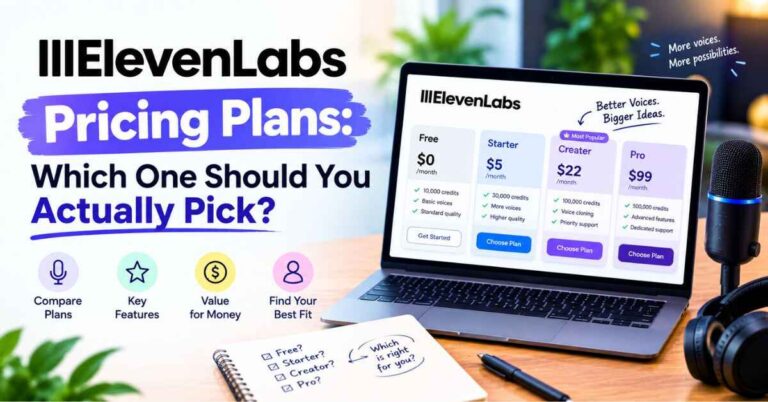
If you’re just learning, the free plan is a great place to practice. It includes about 10,000 credits per month, which covers roughly ten minutes of speech. But there’s one rule worth knowing before you publish anything. ElevenLabs’s own documentation says that on the free plan, you can use the content non-commercially with attribution. If your project makes money, such as a monetized video, a paid course, or client work, plan to generate the final audio on a paid plan. Prices and terms change, so check the official pricing page for current details.
Let’s Talk About the Downsides
Any honest tutorial should mention the rough edges.
Retakes use credits. Every regeneration counts. Polishing your script first is the best way to save them.
Some words need tweaking. Names, acronyms, and unusual terms sometimes need a phonetic spelling or an extra comma.
Long audio needs a careful listen. On long projects, one review notes that voice drift on long-form content remains an issue, so listen through and regenerate any section that wanders.
Real costs can run higher than the sticker price. The same review warns that real production costs can be two to three times higher than plan pricing suggests, mostly from retakes and long projects.
Newer models are still evolving. Features like audio tags can behave inconsistently across voices, so test before you rely on them.
Good audio still needs a good script. The tool can’t turn a dull script into a gripping one.
None of this is a dealbreaker. It’s the stuff I’d want a friend to tell me up front.
Common Mistakes (and Easy Fixes)
Here are the slip-ups I see most often.
Mistake: picking a voice in ten seconds. Fix: audition at least three with the same paragraph.
Mistake: fiddling with every slider. Fix: start with the common settings and change one thing at a time.
Mistake: pasting the whole script and generating once. Fix: work in sections.
Mistake: leaving digits and symbols in. Fix: spell them out.
Mistake: ignoring the third sentence. Fix: judge a voice by how it sounds after a full paragraph.
Mistake: forgetting the license. Fix: use the free plan to practice, and a paid plan for anything commercial.
Mistake: skipping the listen-through. Fix: always do a final pass with headphones.
Your First Ten Minutes: A Simple Game Plan
If you want to try this right now, here’s what I’d do.
- Sign up for the free plan.
- Take one paragraph you’ve already written. Clean it up and spell out the numbers.
- Audition three voices with that paragraph.
- Try the standard model with stability near the middle and style at zero.
- Generate and listen with headphones.
- Adjust one thing. Try a lower stability for more life, or a higher one for calm.
- Decide. If it sounds like something you’d be proud to publish, you’ve got your workflow.
That’s it. No tutorial videos, no manual, just one paragraph and a few minutes.
Quick FAQ
Is ElevenLabs text to speech easy for beginners?
Yes. The core process is paste text, pick a voice, adjust settings if you like, and generate.
Which setting matters most?
The voice you choose matters most, then the model, then the sliders.
What settings should I start with?
A commonly suggested starting point is stability around 50, similarity around 75, and style at 0. Adjust from there based on what you hear.
Why does it mispronounce certain words?
Names, acronyms, and technical terms can trip it up. Try spelling them phonetically or adding punctuation.
Should I write numbers as digits?
The official advice is to spell numbers out and avoid symbols, especially with multilingual models.
Can I add emotions like whispering or laughing?
Some models, such as Eleven v3, support audio tags for that. Check the current documentation for supported tags and limits.
Can I use free audio commercially?
No. Free-plan audio is for non-commercial use with attribution. For monetized work, use a paid plan and check the current terms.
Does it work in other languages?
Yes, with multilingual models. Check the current language list on the official site.
Final Thoughts
The best ElevenLabs text-to-speech tutorial is really just a handful of habits. Write for the ear. Choose your voice carefully. Pick a good model. Leave the sliders near their defaults until you have a reason to move them. Generate in sections. Listen like a viewer.
Do those things, and you’ll get audio that sounds natural, saves you hours, and makes the voice step feel easy instead of scary. And when the part of your process you used to dread becomes the easiest part, you finish more of what you start. That’s the real payoff.
If you’ve been waiting for the right moment to try it, here’s your sign. One paragraph, a few minutes, and a pair of headphones will tell you more than any tutorial, including this one.
👉 Ready to hear your own words in a natural voice? Start with a free ElevenLabs account and follow the steps above.
Affiliate Disclaimer
Quick heads-up: some links in this post are affiliate links. If you click one and decide to sign up, I may earn a small commission at no extra cost to you. It helps keep this blog running. I only recommend tools I believe are genuinely useful, and my opinions are my own. Features, models, and prices change often, so please check the official site for current details before you publish or pay for anything.