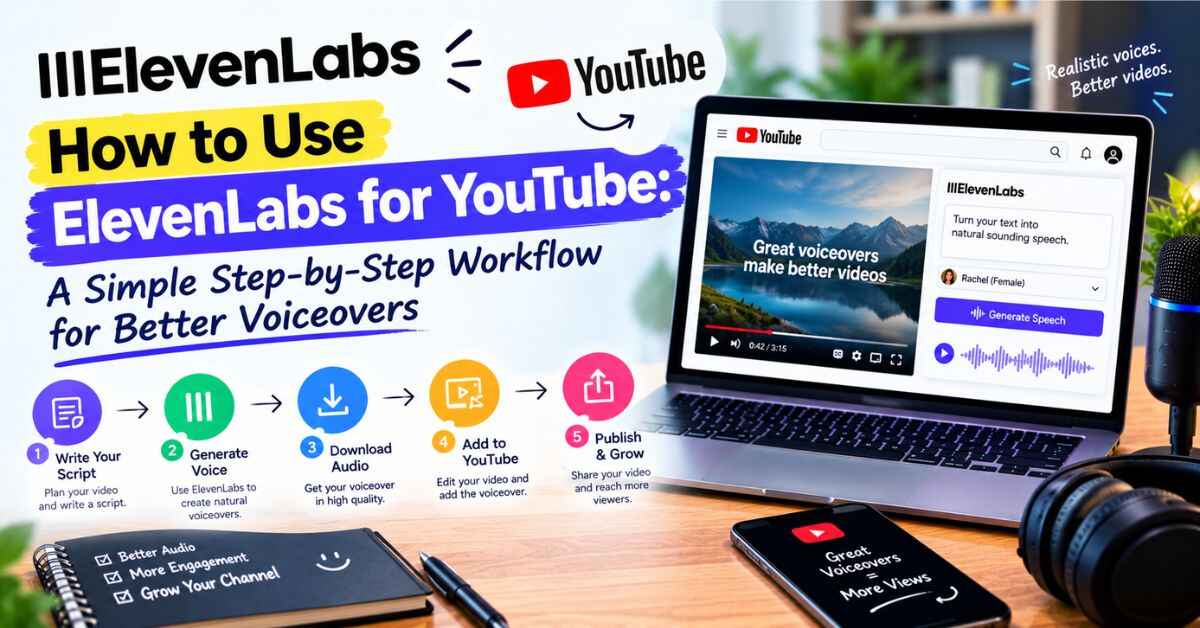
How to Use ElevenLabs for YouTube: A Simple Step-by-Step Workflow for Better Voiceovers
If you want to know how to use ElevenLabs for YouTube, I’ll make it easy: you write a script, paste it in, pick a voice, download the audio, and drop it into your video editor. That’s the whole idea. The rest of this post is about doing it well, avoiding the mistakes that make AI voiceovers sound cheap, and staying on the right side of YouTube’s rules so your channel keeps growing.
I’ll also be honest about what works and what doesn’t, because a workflow that looks great on paper can fall apart the first time you actually try it.
The Voiceover Problem That Quietly Kills YouTube Channels
Here’s a scene you might know too well.
It’s Saturday morning. The script is done, the footage is organized, and you’re actually excited. You open the recording software, take a breath, and hit record.
Ten seconds in, you flub a word. You restart. Then a neighbor starts mowing the lawn. You restart again. By the time you finally get through the intro, your voice sounds tired, a little flat, and nothing like the energy you had when you wrote the script. An hour disappears, and you’ve got two minutes of usable audio.
So you try the shortcut. You paste your script into a free text-to-speech tool, press play, and cringe. It sounds like a train station announcement. Every sentence lands on the same note. You can already picture viewers leaving in the first fifteen seconds.
That’s the squeeze most YouTubers feel. Record yourself and lose hours, or use a robot voice and lose viewers.
Why This Matters More Than You Think
Voice isn’t a small detail on YouTube. It’s a big part of whether people stay.
Watch time drives how YouTube shows your videos. If viewers leave early because the narration sounds flat or awkward, your video gets pushed to fewer people. Fewer people means fewer subscribers, fewer views, and less income. The cycle feeds itself.
And the time cost builds up quietly. If voice work eats three extra hours per video and you post twice a week, that’s about twenty-four hours a month spent on just one step. Many creators don’t burn out because of bad ideas. They burn out because of one slow, annoying step that never gets easier.
What you really want is a voice that sounds natural, takes minutes instead of hours, and lets you fix a mistake without re-recording an entire paragraph. That’s the gap ElevenLabs fills. Also read: ElevenLabs Review 2026: The AI Voice Tool That Finally Made Voiceovers Feel Easy
So, What Is ElevenLabs?
ElevenLabs is an AI voice platform. You type or paste your script, choose a voice, and it reads it back in a voice that sounds surprisingly human.
The difference is in the delivery. Older tools read words one after another. ElevenLabs seems to understand the sentence. Questions rise at the end. Pauses land where a person would breathe. Excited lines sound lively, and serious ones settle down. It’s the difference between audio people tolerate and audio people actually finish.
Beyond text to speech, it offers a large voice library, voice cloning, dubbing into many languages, transcription, sound effects, voice agents, and an API for developers. For YouTube, though, the text to speech tool is where most creators start, and where we’ll start too.
How to Use ElevenLabs for YouTube: The Step-by-Step Workflow
Alright, here’s the practical part. I’ll walk through it the way I’d explain it to a friend sitting next to me.
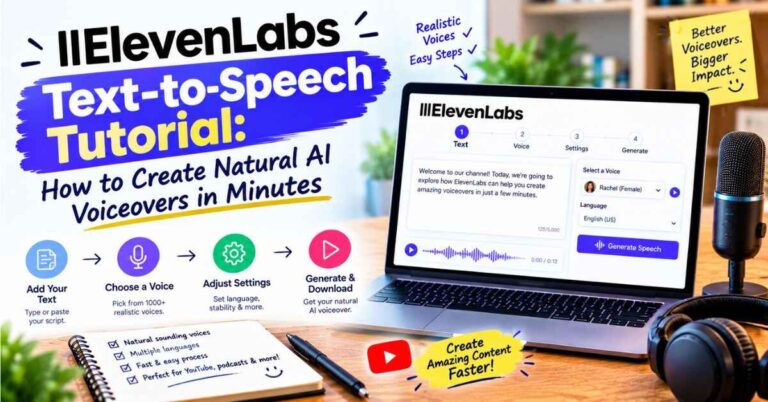
Step 1: Write the script for the ear, not the eye
This is the step most people skip, and it makes the biggest difference.
Text that reads well on a page can sound stiff when spoken. So write like you talk. Use short sentences. Add contractions. Break up long thoughts. Read each paragraph out loud in your head, and if you’d stumble over a sentence, rewrite it.
A few small habits help a lot:
- Put one idea in each sentence.
- Use commas and periods to create the pauses you want.
- Spell out numbers and abbreviations the way you’d say them.
- Write tricky names phonetically if the tool struggles with them.
A clean script also saves you money, because every retake uses up credits. Polishing the text is cheaper than regenerating the audio.
Step 2: Choose a voice that fits your channel
Open the voice library and spend a few minutes browsing. Don’t rush this part.
Ask yourself what your channel feels like. A calm documentary channel needs something steady and warm. A tech explainer wants something crisp and confident. A storytelling channel needs someone with range. A kids’ channel needs something playful.
Preview several voices with the same paragraph. Listen for the third sentence, not the first, because almost every voice sounds good for one line. You’re looking for the one that still sounds human after a full paragraph.
Once you pick one, stick with it. A consistent voice becomes part of your channel’s identity, and returning viewers start to recognize it the way they’d recognize a favorite host.
Step 3: Adjust the settings
Before you generate the whole script, tweak how the voice behaves. You can usually adjust how stable or expressive it sounds.
A more stable setting gives you a calm, even delivery, which is great for tutorials or documentary-style content. A more expressive setting gives you more emotion and variation, which suits stories, reactions, and energetic videos.
Try a short paragraph at a couple of different settings and compare. It takes a few minutes, and after that it becomes second nature.
Step 4: Generate in chunks
Here’s a tip that saves a lot of frustration. Don’t paste a whole twenty-minute script and hit generate once. Work in sections.
Generate one section at a time, listen, and fix anything that sounds off. If one line lands wrong, you only regenerate that line, not the whole video. It keeps your credit use down and makes it easier to catch pronunciation slip-ups early.
Listen with headphones. Little things like an odd emphasis or a strange pause are easier to catch that way.
Step 5: Fix the tricky words
Every AI voice stumbles on something. Usually it’s a brand name, an acronym, a technical term, or an unusual name.
The fix is simple. Try spelling the word the way it sounds, adding a comma for a pause, or rewording the sentence slightly. Most problems vanish after one or two tweaks. Keep a small list of fixes you’ve used so you can reuse them in future videos.
Step 6: Download and drop it into your editor
Once the audio sounds right, download it and import it into whatever editor you use. From there, it’s the same as any narration: line it up with your footage, trim the gaps, and cut to the beat.
A few editing habits make AI voice sound even better:
- Add a touch of room tone or soft background music under the voice so it doesn’t feel isolated.
- Keep the music low enough that it never fights the narration.
- Vary your visuals so the voice isn’t carrying a static screen.
- Leave short pauses between big ideas, just like a human narrator would.
Step 7: Edit by editing the script
This is the part that feels like cheating once you’ve done it.
Realize halfway through editing that one fact is wrong? Fix the text, regenerate that line, and replace it in the timeline. No microphone, no setup, no trying to match the tone of your earlier recording. Mistakes that used to cost an hour now cost a minute.
Step 8: Publish thoughtfully
Before you upload, check YouTube’s current rules on AI voices and disclosure. I’ll cover that in a moment, because it’s important and often misunderstood.
👉 Want to hear a voice before you read the steps? Try ElevenLabs free here and paste in the first paragraph of your next script.
Making AI Voice Sound Human on YouTube
A great tool still needs a good hand. Here are the habits that separate “wow, that sounds real” from “yep, that’s a robot.”
Write with personality. Humor, asides, and small stories make the voice sound alive. Flat writing produces flat audio, no matter how good the voice is.
Vary your sentence length. A long sentence, then a short one. Like that. It creates rhythm, and rhythm creates realism.
Add emphasis on purpose. Use punctuation to control the beat. A comma slows things down. A period stops them.
Keep your pacing natural. Cramming too many words in too fast makes any voice sound mechanical.
Match the voice to the mood. Don’t use a bubbly voice for a serious topic or a somber one for a comedy.
Listen like a viewer. Play the final video once without looking at the screen. If you’d keep listening, your audience probably will too.
The Part Most Guides Skip: YouTube’s Rules on AI Voice
If you’re using an AI voice on YouTube, you should understand the policies, because the wrong assumptions can cost you. I’m not a lawyer or a YouTube employee, so use this as a starting point and read YouTube’s current help pages for the final word.
Here’s what I found, and it’s actually reassuring.
AI voices aren’t banned. YouTube has clarified that using AI tools doesn’t automatically disqualify content from monetization, as long as creators follow the rules around disclosure and monetization. One breakdown puts it bluntly: a synthetic voice reading an original script violates nothing.
The real risk is mass-produced content. In July 2025, YouTube renamed its “repetitious content” policy to “inauthentic content” to clarify that it covers content that’s repetitive or mass-produced. Through 2026, YouTube has evaluated whole channels rather than single videos to spot that pattern faster. In plain terms, a channel full of near-identical template videos with a robot voice and a static image is at risk. A channel with original scripts, real research, and real editing is not.
Original value is the key. One summary puts the question this way: the issue isn’t whether YouTube allows AI voices, it’s whether your voiceover-driven videos are original, authentic, and meaningfully produced rather than templated. That’s good news if you care about quality, because that’s what you were going to do anyway.
Disclosure is a separate rule. YouTube requires disclosure when realistic content uses altered or synthetic media. The details matter: one guide notes that the voice examples on YouTube’s help page focus on whose voice it is, not how natural it sounds, so a generic AI voiceover over truthful footage doesn’t carry a disclosure obligation. But if you cloned a real person’s voice, or you’re presenting something realistic that could mislead viewers, the answer changes. When in doubt, use the disclosure toggle in YouTube Studio. YouTube has said the label doesn’t affect distribution or monetization eligibility. YouTube AI Monetization: Can You Monetize AI-Generated Videos in 2026? +2
Be careful with sensitive topics. One source warns that an AI persona presented as a human expert on health, legal, financial, or political topics can fail the monetization policy. If you cover those subjects, be transparent and use your own research and judgment.
The takeaway: use AI voice as a tool for your original ideas, not as a way to mass-produce content. If you do that, you’re in good shape.
One More Thing: Free vs. Paid for Monetized Channels
This trips up a lot of new YouTubers, so I’ll say it clearly.
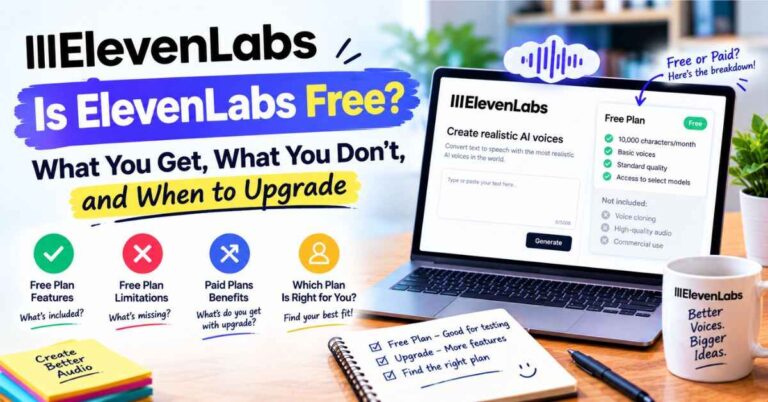
ElevenLabs has a free plan, and it’s great for testing. But ElevenLabs’s own documentation says that on the free plan you can use the content non-commercially with attribution. If your channel is monetized, or you plan to monetize, you’ll want a paid plan for the audio you publish. The entry-level Starter plan is listed at around five dollars a month and is described as the minimum for monetized content. Plans change, so confirm current details on the official page before you publish.
My advice is simple. Use the free plan to audition voices and test scripts. Then generate your final audio on a paid plan.
👉 Curious how your own script sounds before you commit to anything? Open a free ElevenLabs account and test your next video’s intro.
Real-Life Examples: How Different YouTubers Use It
Let me show you how this plays out for different kinds of channels.
The explainer channel. Imagine someone who makes tech explainers twice a week. He writes the script on Sunday, generates the voice in sections on Monday, and edits Tuesday. Voice used to take an entire afternoon. Now it takes about twenty minutes, and he spends the saved time on better visuals and research.
The storytelling channel. A creator tells true crime-style stories with a dramatic, moody tone. She picks an expressive voice, turns up the emotion setting, and adds soft music beneath. Because she can regenerate single lines, she tests different deliveries for key moments until the tension lands.
The tutorial channel. A teacher makes software tutorials. When the software updates, he doesn’t re-record everything. He edits the affected lines, regenerates them, and swaps the audio. Old videos stay current with almost no effort.
The shy creator. A woman who hates the sound of her own voice has avoided YouTube for years. With a natural AI voice, she finally publishes her ideas without the discomfort. Her content improves because she’s no longer stuck on the part she dreaded.
The multilingual channel. A creator with a solid English audience wants to reach Spanish and Portuguese speakers. Using dubbing and multilingual features, he creates new versions of his top videos with no extra filming. A small channel gets a second audience.
The Shorts creator. Someone who posts several short videos a week needs fast, punchy voiceovers. A quick script, a quick generation, and she’s done. Consistency goes up because the friction goes down.
The common thread is that none of them use AI to replace their ideas. They use it to remove a bottleneck.
What I Like Most About This Workflow
A few things stand out to me.
It gives you hours back. Voice work that took an afternoon now takes minutes. Over a month, that adds up to days.
It sounds like a person. When the script is written well, the audio feels natural enough that viewers stay.
Fixes are painless. Edit the text, regenerate the line, move on.
It’s consistent. The same voice across every video builds familiarity with your audience.
It scales. One video a week or five, the process stays the same.
It removes the dread. This might be the biggest one. When the step you used to avoid becomes the easy step, you publish more.
Let’s Talk About the Downsides
A review that only praises isn’t worth trusting, so here’s the other side.
Credits can disappear quickly. Retakes use credits just like first takes. Writing a clean script first helps a lot.
Some words need a nudge. Names, acronyms, and technical terms sometimes need a phonetic spelling or an extra comma.
Long videos need a listen-through. On long projects, you may notice the voice drifting slightly. One review mentions voice drift on long-form content as an ongoing issue, so listen through and regenerate sections that wander.
Real costs can run higher than the sticker price. The same review warns that real production costs can be two to three times higher than plan pricing suggests, mostly from retakes and long projects. Match your plan to how much audio you actually make.
It won’t fix a weak script. A bland script with a great voice is still a bland video.
Policies change. YouTube’s rules and ElevenLabs’s terms can both shift. Always check the current versions.
None of this is a dealbreaker. These are just the things I’d want a friend to tell me before I started.
Your First Video: A Simple Game Plan
If you want to try this today, here’s the plan I’d follow.
- Sign up for the free plan. It takes a couple of minutes.
- Take the intro of your next video. About a paragraph is plenty.
- Audition three voices. Pick the one that sounds like your channel.
- Adjust the settings. Try one calmer and one more expressive version.
- Generate, listen, and fix. Tweak tricky words.
- Drop it into your editor. See how it feels with your footage.
- Decide. If it sounds like something you’d be proud to publish, upgrade to a paid plan for your final, monetized audio.
That’s an hour or less, and you’ll know whether it fits your channel.
Quick FAQ
Can I use ElevenLabs on a monetized YouTube channel?
Yes, with a paid plan that includes commercial rights. The free plan is for non-commercial use with attribution. Check the current terms on the official site.
Will YouTube demonetize me for using an AI voice?
Not automatically. YouTube’s concern is mass-produced, repetitive, or templated content. Original scripts and real editing are what matter. Read YouTube’s current policies for the details.
Do I have to label AI voice on YouTube?
It depends. YouTube requires disclosure for realistic altered or synthetic content, such as realistic cloned voices of real people. A generic voiceover over truthful footage is treated differently. When unsure, use the disclosure option in YouTube Studio.
Can I clone my own voice for YouTube?
Yes, voice cloning is available on certain plans. Only clone your own voice or one you have clear permission to use.
Does it work for Shorts?
Yes. Quick scripts make fast voiceovers, which suits short-form content well.
Can I make videos in other languages?
ElevenLabs supports many languages, which can help you reach new audiences. Check the current language list on the official site.
How many credits will a video use?
It depends on script length and retakes. Test one section on the free plan to estimate your usage.
Final Thoughts
Learning how to use ElevenLabs for YouTube isn’t complicated. Write for the ear, choose a voice that fits, generate in sections, fix the tricky words, and edit it like any other narration. The skill is in the script and the polish, and the tool handles the rest.
What I like most is what it does for your habits. When voiceover stops being the step you dread, you finish more videos. You publish more consistently. And on YouTube, consistency is often what separates channels that grow from channels that quietly stop.
If you’ve been putting off a video because the voice part feels like a mountain, try this on one intro. Worst case, you spend twenty minutes and learn what AI voices can do now. Best case, you find a workflow that gives you hundreds of hours back this year.
👉 Ready to hear your own script in a natural voice? Start with a free ElevenLabs account and try the first minute of your next video.
Affiliate Disclaimer
Quick heads-up: some links in this post are affiliate links. If you click one and decide to sign up, I may earn a small commission at no extra cost to you. It helps keep this blog running. I only recommend tools I believe are genuinely useful, and my opinions are my own. Plans, prices, and YouTube’s policies change, so please check the official sites for current details before you publish or pay for anything.