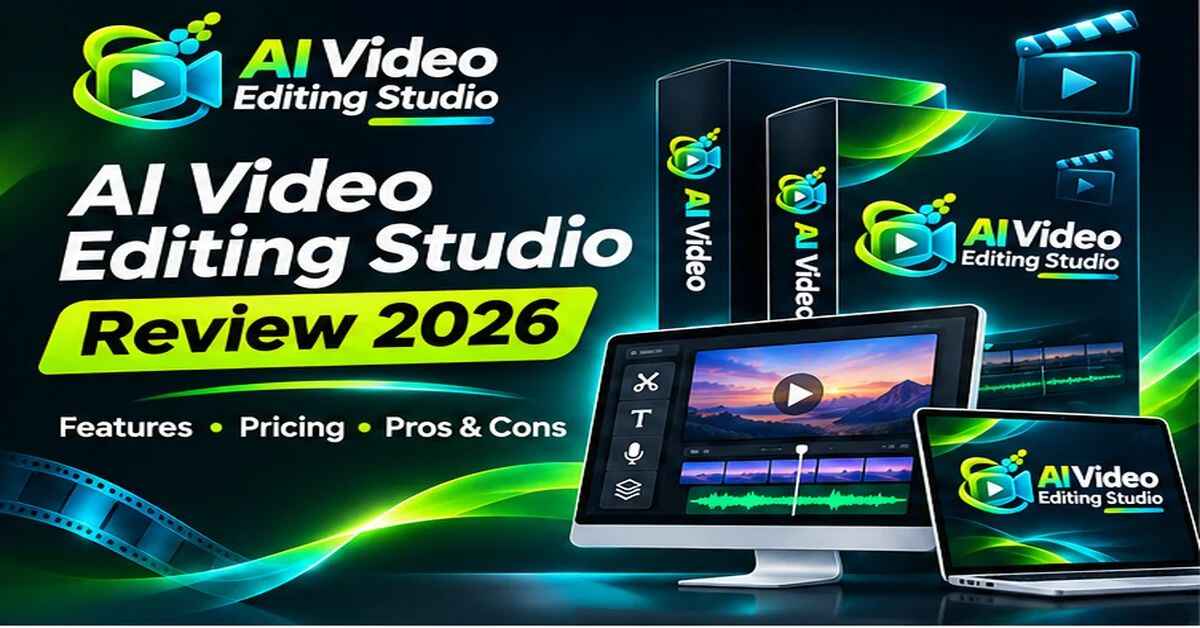
AI Video Editing Studio Review 2026: Features, Pricing, Pros & Cons
You sit down to make one simple video. An hour later you’ve got three different apps open, one subscription expired, a caption tool that wants a monthly fee, and a voiceover you still haven’t recorded. Sound familiar? That’s the exact headache this AI Video Editing Studio Review is about.
AI Video Editing Studio is a browser-based video editor with AI built right in. It promises a full multi-track timeline plus AI video, captions, voiceovers, background removal, music and sound effects, all in one dashboard, for a one-time payment of $14.95.
It goes live on Friday, November 20th at 11:00am Eastern, so I’ll walk you through what it does, how it works, who it suits, the pros and cons, the price and whether I think it’s worth it.
AI Video Editing Studio Review: Quick Overview
Here’s the quick snapshot:
- Product: AI Video Editing Studio
- Creator: Udhabb Pramanik (InSource Apps)
- What it is: A browser-based video editor with a full timeline and built-in AI tools
- AI tools included: Video generator, auto captions, AI voice, background remover, AI music, AI sound effects
- Extras: Built-in stock library, upload your own media, step-by-step training
- Works on: Windows, Mac and Chromebook (any modern browser)
- Install needed: None
- Price: $14.95 one-time launch price
- License: Commercial license (first 50 buyers get it activated free, per the sales page)
- Guarantee: 30 days
- Launch: Goes live November 20th, 11:00am Eastern
- My rating: 4.4 out of 5
The short version: it’s a low-priced, all-in-one video studio that runs in your browser. Let’s see whether the details back that up.
What Is AI Video Editing Studio?
AI Video Editing Studio is a web-based video editor. You log in from any browser, drop your clips onto a multi-track timeline, and edit the way you would in tools like Premiere Pro, Final Cut Pro or CapCut. The difference is that the AI helpers live inside the same dashboard.
Here’s what that means in practice. Normally, making a polished video means juggling several tools: one to edit, one for captions, one for voiceovers, one to remove backgrounds, one for music, one for sound effects and another for stock footage. Each wants its own monthly fee. (If you like comparing these kinds of tools, my AI video tools guides cover a lot of them.)
This tool puts all of those into one place. You can upload your own clips, images and audio, or pull from the built-in stock library. Then AI adds captions, voiceovers, music and sound effects in a few clicks. It can even generate video from a prompt.
Because it’s cloud-based, there’s nothing to download, no updates to manage and no powerful computer required. If your device has a browser and internet, you’re set.
And it’s built with both creators and service providers in mind. The commercial license means you can edit videos for clients, which turns it from a simple tool into a possible side business.
How Does AI Video Editing Studio Work?
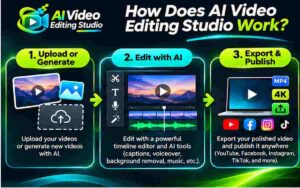
The vendor describes a three-step flow. Here’s how it breaks down in plain terms.
Step 1: Getting Started
You log in from any browser. That’s it. No installs, no setup wizard, no hardware upgrades.
Step-by-step training videos are included, which is helpful if you’ve never edited before. Most people who give up on video do it in the first week, when everything feels confusing. Having walkthroughs ready removes a lot of that.
Step 2: Setting Up the Product
Next, you bring in your material. You can upload your own clips, images, logos and audio, pick footage from the stock library, or let the AI generate a video from an idea or prompt.
Then you drag everything onto the timeline. It’s a multi-track setup, so you can layer video, audio, text and images, and cut, trim, split and arrange them the way you want.
This is also where you choose your format. Landscape for YouTube, vertical for Shorts, Reels and TikTok, or square for feeds. Switching formats is built in.
Step 3: Using the Main Features
Now the AI does the boring parts. Click for auto captions. Type a script for a voiceover. Remove the background without a green screen. Generate music and sound effects that fit the mood. Add titles, text overlays and transitions.
When you’re happy, export the video and post it to YouTube, Instagram, TikTok or Facebook, or deliver it to a client.
My tip: always watch the finished video once all the way through before exporting. AI captions and voiceovers are fast, but a quick check for typos and pacing makes the result feel professional.
AI Video Editing Studio Features and Benefits
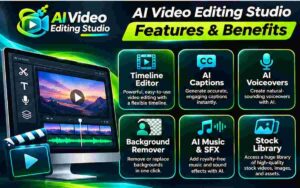
There’s a long list on the sales page, so I’ll focus on the three features that I think change your day-to-day the most, then cover the rest.
Feature 1: Full Timeline Editor in Your Browser
This is the foundation. A real multi-track timeline that works in a browser, with no software to install.
Why does it matter? Traditional editors need heavy downloads, constant updates and a computer that can handle rendering. A browser-based editor works on a basic laptop or even a Chromebook. For people who can’t or don’t want to buy a high-end editing PC, that’s a real advantage.
It also means you can pick up where you left off on any computer. Log in, and your studio is there.
Feature 2: AI Captions, Voice, Music and Sound Effects
This is where the time savings show up. Typing captions line by line can take longer than the editing itself. Recording voiceovers means a microphone, a quiet room and retakes. Finding music and sound effects can eat an hour of scrolling.
With AI Video Editing Studio, captions are generated automatically and timed for you. You type your script and get a natural-sounding voiceover, no mic needed. Music and sound effects are generated on demand to fit your video. If voice tools are your thing, I also cover options in my AI audio and voice tools category.
Captions especially matter, since a lot of people watch social video with the sound off. Having them added in one click helps keep viewers watching.
This also makes faceless videos much easier. If you don’t want to appear on camera, AI voice plus stock footage lets you still publish consistently.
Feature 3: AI Background Remover, Video Generator and Stock Library
These three cover the gaps. The background remover lets you place yourself or a product in any scene without a green screen. The AI video generator turns a prompt into a clip you can drop on your timeline and tweak. The built-in stock library gives you clips, images and audio when you don’t have your own.
Together, they mean you rarely get stuck. Missing a shot? Pull one from the library or generate it. Need a cleaner look? Remove the background. That kind of flexibility keeps projects moving instead of stalling.
There’s also a commercial license included, so you can edit for clients and local businesses.
The Rest of the Package
- Upload your own videos, images, logos and audio
- Built-in stock video, image and audio library
- Text, titles and smooth transitions
- Landscape, vertical and square formats
- Step-by-step video training and support
- A commercial license so you can edit for clients (the sales page mentions the first 50 buyers get it activated free, so read the checkout details)
- One-time price with no monthly fees on the front-end edition
Who Is AI Video Editing Studio Best For?
Here’s who I think gets the most from it.
Beginner creators. If you want to start posting videos but traditional editors feel intimidating, a drag-and-drop editor with AI help lowers the barrier.
Social media managers and marketers. Shorts, Reels, TikToks and Facebook video ads all need steady output. One dashboard speeds up the whole workflow. If you handle promotions around busy shopping seasons, my SaleSeason AI review covers a tool built for that.
Freelancers and side-hustlers. The vendor suggests offering editing, captioning and short-form video services to local businesses, creators and agencies. With a commercial license, that’s a realistic path, though your results will depend on finding clients. My freelancing guides can help with the client side.
Small business owners. If you make your own promo videos or ads, this saves you from paying a freelancer for every small edit.
Faceless channel builders. AI voice, stock footage and captions make faceless content much simpler. If you also build Amazon-style content, my AzonFlow review looks at a tool that adds video to an affiliate workflow.
Anyone tired of subscriptions. If you’re paying monthly for several tools, a one-time price is appealing.
Who might not need it? Professional editors with complex workflows who rely on specialized features in industry software. This is built for speed and simplicity, not for replacing a full Hollywood-level setup.
AI Video Editing Studio Pros and Cons
Pros
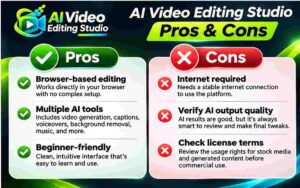
- Full multi-track timeline editor that runs in your browser
- No download, no install, no hardware upgrade
- Works on Windows, Mac and Chromebook
- AI captions, voiceovers, music, sound effects, background removal and video generation in one place
- Built-in stock library plus upload your own media
- Edit for YouTube, Shorts, Reels, TikTok and Facebook formats
- Commercial license for client work
- Step-by-step training included
- One-time payment at launch ($14.95)
- 30-day money-back guarantee
- Beginner-friendly
Cons
- The vendor says the price moves to a monthly subscription after launch, so the one-time deal is time-limited
- AI output still benefits from a human review
- A browser editor may not match the depth of professional desktop software for very advanced work
- Income examples on the page are best-case, not guaranteed
- Performance depends on your internet connection
- You’ll likely see optional upgrades in the funnel, so decide what you actually need
None of these are dealbreakers at this price. They’re simply the honest trade-offs of a browser-based, AI-powered tool.
AI Video Editing Studio Pricing and OTOs
Now the part most people scroll for.
Front-end price: $14.95, one-time. The sales page shows a high crossed-out monthly “normal price” and a launch price of $14.95, which it describes as 88.6% off. I’d treat the crossed-out figure as a marketing anchor. What matters is the actual price you pay.
What the front end includes:
- Lifetime access to AI Video Editing Studio with core updates
- Full timeline video editor
- AI video generator
- AI auto captions generator
- AI voice
- AI background remover
- AI music generator
- AI sound effects generator
- Built-in stock library
- Upload and edit your own media
- Every platform and format
- Commercial license
- Step-by-step video training
- 30-day guarantee
An important detail: the vendor says that once the launch period ends, the price switches to a monthly subscription. So the one-time payment is a launch-only deal. If you’re interested, that’s the real reason to decide sooner rather than later.
Upgrades (OTOs): Funnels like this often include optional upgrades after checkout. Details and pricing for any upgrades will appear as you go through the order process, so I won’t guess at them here. My general advice is simple: start with the front end, test the tool for real, and only add upgrades if you hit a limit and know why you need more.
At $14.95, the total cost of getting started is lower than a single month of most editing or AI subscriptions.
AI Video Editing Studio Bonuses
The sales page mentions one launch perk worth knowing about: the first 50 buyers get the Commercial License activated free. If you plan to edit for clients, that’s a meaningful bonus, so it pays to move early.
Beyond that, bonus offers can change during a launch, and different affiliates sometimes add extras of their own. I’d check the offer page and your order confirmation for the most current list instead of relying on an old one.
Here’s how I’d think about bonuses in general. Training, templates and client-getting resources are usually more useful than random extras. If any bonus helps you find your first client or plan your first month of videos, that’s the one worth caring about.
🔥 Curious if the launch price is still live? Check the current AI Video Editing Studio offer here before it changes 👉
My AI Video Editing Studio Evaluation
I’ll be upfront about how I judged this one. My evaluation is based on a careful review of the vendor’s sales page and launch page: the feature list, the pricing, the guarantee, the demo material and the claims. I compared it with how video creators and freelancers actually work.
Here’s how I’d score it:
- Ease of use: 4.5/5. Browser-based, drag-and-drop and no installs.
- Value for money: 5/5. A full editor plus six AI tools for $14.95 is hard to beat.
- Features: 4.5/5. The mix of timeline editing and AI tools is the real strength.
- Output potential: 4/5. AI results vary, and you’ll want to review and polish.
- Realistic expectations: 3.5/5. Income claims on the page are optimistic, so keep your own expectations grounded.
Overall: 4.4 out of 5.
What I like most is the problem it targets. Most people don’t quit video because they lack ideas. They quit because the process is slow, expensive and fragmented. Putting editing and AI helpers in one place directly attacks that.
What I’d gently warn about: speed helps you publish more, but strong videos still need a good idea, a clear hook and a bit of your own judgment. The tool handles the grunt work. You bring the creativity.
AI Video Editing Studio vs. Alternatives
Here’s how it stacks up against the usual options.
Premiere Pro and Final Cut Pro. These are the professional standards, with deep features and a big learning curve. They also need installs, capable hardware and, in Premiere’s case, an ongoing subscription. AI Video Editing Studio trades some depth for simplicity and a lower price.
CapCut. Popular and beginner-friendly, especially for short-form video. It’s a strong option, though some features sit behind paid tiers. AI Video Editing Studio’s pitch is having editing and the AI tools together for a single payment.
Separate AI tools. You could use one app for captions, another for voice, another for music and another for background removal. That can work, but it’s more expensive and more scattered. You can browse more of these in my AI tools section.
Hiring an editor. Great results, but costs add up quickly if you publish often.
Where AI Video Editing Studio wins is simplicity and price. Where alternatives can win is advanced control and a deeper feature set for experienced editors. If you want to make good videos quickly without a big learning curve, this is a strong fit. If you need frame-level precision for complex projects, a professional editor may still be your better choice.
Is AI Video Editing Studio Legit?
Fair question, especially at this price.
From what I reviewed, the offer is presented clearly. There’s a defined feature list, a stated one-time launch price, a named vendor (InSource Apps), step-by-step training, a support team mentioned on the page and a 30-day money-back guarantee. It’s also being launched through an established affiliate marketplace. The page includes the standard disclaimer that results vary and aren’t guaranteed, which I appreciate, because that’s the honest framing.
Here’s how I think about it. The product is real in concept: a browser-based editor with AI tools. The risk is small at $14.95, and the guarantee covers you for a month. What isn’t guaranteed is income. The $200 to $500 per video examples are what the vendor says you could charge, not what you will earn.
So yes, it looks legitimate. Treat it as a useful tool, test it properly and keep your income expectations realistic.
AI Video Editing Studio Refund Policy
You’re covered by a 30-day money-back guarantee.
According to the sales page, if the tool doesn’t make video creation faster, easier or cheaper, or you simply decide it’s not for you, you can let the support team know within 30 days and get a full refund. The page describes it as no questions asked.
At this price, the risk is already tiny. With the guarantee, it’s close to zero. My suggestion: use the 30 days on purpose. Edit a real video from start to finish. Try the captions, the AI voice, the background remover and the music generator. Export it, check the quality and see how it fits your workflow. That’s the best way to know if it’s right for you.
Frequently Asked Questions
Do I need to download or install anything?
No. It runs entirely in your web browser. Log in and start editing.
Do I need video editing experience?
No. The drag-and-drop timeline is beginner-friendly, AI handles captions, voiceovers, music and effects, and step-by-step training is included.
Will it work on my computer?
Yes. It works on Windows, Mac and Chromebook with a modern browser and internet connection.
Can I upload my own videos?
Yes. You can upload your own clips, images, logos and audio, or use the built-in stock library.
What AI features are included?
An AI video generator, auto captions, AI voice, background remover, AI music and AI sound effects.
Is it really a one-time payment?
Yes, for the front-end edition at launch. The vendor says the price switches to a monthly subscription after the launch period ends.
Can I use it for client work?
Yes. A commercial license is included, and the first 50 buyers get it activated free, according to the sales page.
Which video formats can I make?
Landscape, vertical and square, for YouTube, Shorts, Reels, TikTok, Facebook and more.
What if I change my mind?
You’re covered by a 30-day money-back guarantee.
When does the launch start?
It goes live November 20th at 11:00am Eastern.
Final Verdict: Is AI Video Editing Studio Worth Buying?
So, is it worth it?
For most people who want to make more videos without paying for a stack of apps, I think yes. At $14.95 one-time, you get a browser-based timeline editor and a full set of AI tools for captions, voice, music, sound effects, background removal and video generation, plus a commercial license and training. That’s a lot of capability for the price, and the 30-day guarantee takes most of the risk away.
It won’t make you a viral creator or a six-figure freelancer overnight. No honest review should say that. What it does is remove the technical and financial barriers that stop people from even starting. The ideas, the consistency and the client outreach are still yours to bring.
And since the vendor says the price moves to a monthly subscription after launch, the one-time deal is the real reason to look now. If you’ve been putting off video because of cost or complexity, this is a low-risk way to finally test it.
🚀 Ready to try it for yourself? Get started with AI Video Editing Studio here while the launch offer is live 🔥
Affiliate Disclaimer: Quick heads-up: this post contains affiliate links. If you buy through them, I may earn a small commission at no extra cost to you. It helps me keep creating free content. I only share things I think are worth your time, and my opinions are my own. Results vary from person to person, so please do your own research before buying.